Download latest version

Windows anytime upgrade keys
Windows anytime upgrade
Are you having windows 7 then now its possible to upgrade your version of windows to your required version its just simple.Follow the procedure given below and now you can upgrade your windows
1. First Connect Your PC to Internet.
2. Then go to your Control Panel and click on Windows Anytime Upgrade
3. Here you will get a window asking your anytime upgrade keys
4. Just copy paste this keys
according to your version and click next
5. Then it will verify saying its ok
, click on next button
6. A new window will open saying it
may take few minute
7. After few minute it will say your
keys not working or something
8. Just close the windows and restart
your PC and see the magic.
Widnows 7 Home
Premium: 6RBBT-F8VPQ-QCVPQ-KHRB8-RMV82

Windows 7
Professional: VTDC3-WM7HP-XMPMX-K4YQ2-WYGJ8
6RQ9V-6GCG4-8WV2H-966GF-DQ4DW
32KD2-K9CTF-M3DJT-4J3WC-733WD

Windows 7 Ultimate:
FJGCP-4DFJD-GJY49-VJBQ7-HYRR2
342DG-6YJR8-X92GV-V7DCV-P4K27

Unlocking idea modem to use with any sim
WITHOUT USING SOFTWARE
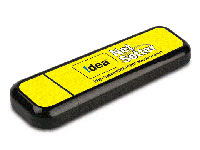
Its an easy process to unlock your idea netsetter modem without using any thirs party software.Only you need to do some tweaks in deviceinfo.xml file. GOTO your C:\Program Files (x86)\Idea Net Setter folder and open Deviceinfo.xml file and find this lines
<item name="WCDMA" Alias="" SMMode="PDU" ProductNet="WCDMA" SimUnlock="Y">
<PhonebookMemory>
<Memory name="SM">
<field name="name"/>
<field name="mobile"/>
</Memory>
</PhonebookMemory>
<ShortMessageMemory>
<Memory name="SM"/>
</ShortMessageMemory>
</item>
Change SimUnlock="Y" to SimUnlock="N" in first line and save file to desktop or somewhere else because it is write protected file and
then replace DeviceInfo.xml file with your edited Deviceinfo.xml file wow now your idea netsetter is unlocked Enjoy.
WITH USING SOFTWARE
Now a days most of us are using data cards of various companies and one of them is IDEA NETSETTER.
Today I’m going to tell, how you can use any other SIM in IDEA NET SETTER and then you can access upto 2mbps via that USB Net setter
Netsetter is using a Huawei modem
Step 1 : Download UNIVERSAL MASTER CODE (software) by THL
Step 1 : Download UNIVERSAL MASTER CODE (software) by THL
Step 2 : Now take your USB modem and see its back , you will see a 15 digit number and that’s your modem’s IMEI number .
Open notepad and type that IMEI no.
Open notepad and type that IMEI no.
Step 3 : Now double click on the downloaded file of Universal Master Code and extract it then click on Universal Master Code.exe
Step 4 : In the IMEI number field of Universal Master Codetype , enter the IMEI number which you have already typed in notepad and press calculate.
It will generate a flash and unlock code
Step 5 : Now connect your USB IDEA net setter and install net setter software from there and run it and also put a non IDEA SIM.
It will ask you for unlock code , also it will show u have 10 attempts ,simply put the unlock code generated from universal master code
And press enter while u have unlocked your IDEA net setter
And press enter while u have unlocked your IDEA net setter
Now for creating new profile go to Tools > Options > Profile Management and click new
Type APN supported by your sim (eg – for BSNL use bsnlnet as apn ) , leave everything as it is and you can connect easily after that. Enjoy !!
Type APN supported by your sim (eg – for BSNL use bsnlnet as apn ) , leave everything as it is and you can connect easily after that. Enjoy !!
Opening memory card when password lost
This article tells you how to
recover a a micro SD card password and micro SD card password reset in windows.
This document deals with the
issue of losing a password for a MICRO SD card. If the password for the card is
lost then it will be blocked for further use. In such a situation, the user can
interface their mobile with the PC using Bluetooth or Infrared, make the
changes then find the password in the file created thereafter.
Issue

Solution one:
Go to file manager on your
mobile
In Settings choose system
folders,
In the System folder, find a
file called mmcstore
Send the file to your PC using
IR/Bluetooth
Open the file in Notepad
The password you need for your
memory card is located within that file
Solution two:
1. Insert your card into your
phone, without accessing it through the phone
2. Run FExplorer and Open the path C:\system
3. Find the file called
mmcstore, and rename it mmcstore.txt
4. Copy that file
(mmcstore.txt) to your PC and open it in Notepad
5. Your password will be
located within that file.
For Micro SD : -
Put the card in any E series
mobile or N95 etc and format it. It will not ask for a password.
Subscribe to:
Posts (Atom)